
Understanding Organisations and Teams in Medtribe
We’ve launched Organisations and Teams in Medtribe. This guide covers what’s new and how to use it.
Organisations let your team share events, templates, and work together. Each person gets their own login, but everyone collaborates in one shared space.
What’s Changed and Why
Medtribe started as a tool for individual educators managing their own training events. Over time, teams, departments, and entire organisations adopted the platform across the UK and internationally. To support this collaborative use, we’ve introduced Organisations and Teams.
Benefits for You
| Before (Single User System) | Now (Team System) |
|---|---|
| Designed for one educator with a single account | Each person has their own account, all working together |
| Events belonged to whoever created them | Events belong to the team, ensuring continuity |
| Content owned by individuals | Content owned by the team |
| Had to invite collaborators to each event individually | Team members see all team events automatically |
| Difficult to scale across departments | Clear structure for departments, teams, and organisations |
Your events, templates, and data are now safer, more accessible to your colleagues, and easier to manage as a team.
Key Concepts
Personal Workspace vs Organisation Workspace
When you log into the Educator section, you’ll see a workspace switcher at the top of your sidebar. This lets you switch between:
- Personal - Your individual account
- Your Organisation - Your team’s shared space
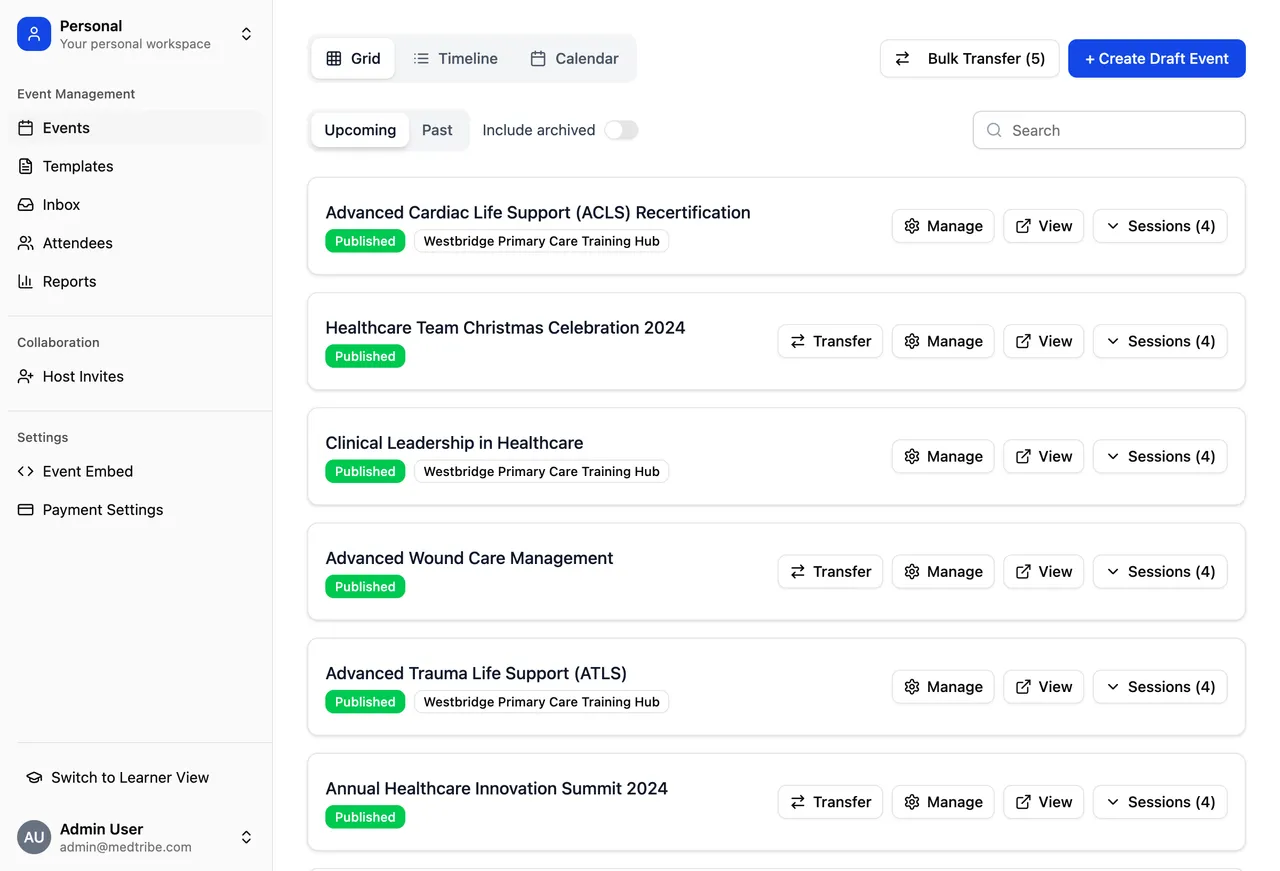
Personal Workspace
Your personal workspace contains events and templates created before you joined an organisation. This content belongs to you personally and only you can see it. Going forward, all new events and templates are created within your organisation.
Organisation Workspace
This is your team’s shared space where all new events and templates are created. Everything here belongs to the team - all team members can see and manage it. If someone leaves, the content stays with the team. This ensures continuity and makes collaboration seamless.
What is an Organisation?
Anyone can create an organisation in Medtribe. An organisation represents your team, department, trust, or training hub. Here are some examples of how organisations might be structured:
- A regional primary care network
- A hospital simulation training facility
- A postgraduate training team
- A private training provider
- A community healthcare collaborative
The organisation names above are illustrative examples showing different ways teams structure their workspaces. Your organisation name should reflect your actual team, department, or trust.
What Are Teams?
Teams are sub-groups within your organisation. While your organisation represents your whole trust, hub, or training provider, teams let you create separate spaces for departments, specialties, or project groups.
Example structure:
Your Organisation (e.g., NHS Trust)
├── Paediatrics Team
├── Emergency Medicine Team
└── Simulation Centre
Each team operates like a mini-organisation with its own events, templates, and members - while still being part of the parent organisation.
Not every organisation needs teams. If your group is small (under 10-15 people) and everyone works on the same events, the main organisation workspace is enough. Teams are useful when you have distinct departments that need separate content.
For a complete guide to creating and managing teams, see Working with Teams Inside Your Organisation.
Understanding Collaboration Options
Medtribe offers three ways to work with others:
| Method | Best For | Access Level |
|---|---|---|
| Team Members | Your regular colleagues | See all organisation events automatically |
| Teams | Departments or specialties within your organisation | Separate workspace within parent organisation |
| Collaborators | External people needing single-event access | Invited to individual events only |
Use Team Members for your regular colleagues. Use Collaborators only for external people who need access to a single event.
Common Questions
I logged in and my events are gone!
Your events haven’t disappeared. You’re likely viewing a different workspace.
- Look at the workspace switcher (top of the sidebar)
- Check if you’re viewing “Personal” or your organisation
- Switch to the workspace where your events are stored
- If you still can’t find them, contact support and we’ll help locate them
I see a Transfer button on my events and templates. What does it mean?
The Transfer button moves events and templates from your personal workspace to your organisation. This is how you bring legacy content into your team’s shared space.
When to use it:
- You created events or templates before joining a team and want to share them with colleagues
- You want the team to take ownership of your content
What happens when you transfer:
- The event or template moves from “Personal” to your organisation
- All team members can now see and manage it
- The content no longer belongs to just you - it belongs to the team
You can select multiple events or templates and transfer them all at once. No need to do it one by one.
Once transferred, content cannot be moved back to your personal workspace. This ensures team content stays with the team.
Which organisation should I join?
Join the organisation that represents where your events and work belong. Consider:
- If you’re setting up a departmental account: Create or join your department’s organisation
- If you’re part of a training hub: Join your training hub’s organisation
- If you work across multiple teams: You can belong to multiple organisations and switch between them
If you can’t find your organisation when searching, it might not exist yet. You can create it, or ask a colleague who’s already set it up to share the name so you can request to join.
I accidentally joined the wrong organisation
This happens. Common scenarios:
- Joined a trust-wide organisation instead of your department
- Joined a regional group instead of your local training hub
What to do:
- Contact Medtribe support and we can move you to the correct organisation
- Make sure you haven’t transferred any events to the wrong organisation yet
What is the difference between Collaborators and Team Members?
See the Understanding Collaboration Options section above for a full comparison.
In short: Team Members are added once and see all organisation events. Collaborators are invited to individual events only - best for external guests or one-off contributors.
We all use a shared login. Should we change?
Yes. We recommend each person having their own login. Here’s why:
| Shared Team Login | Individual Logins |
|---|---|
| Only one person can be logged in at a time | Everyone works simultaneously |
| Difficult to know who made changes | Team visibility of shared content |
| Security risk if password is shared widely | Each person has their own secure access |
| Account locked if someone changes password | Each person controls their own credentials |
For security, we only allow one active session per account. When someone logs in, any existing sessions are ended. This is a standard security measure. It means if two people try to use the same account, they’ll keep logging each other out.
How to transition:
- Create your team’s organisation (if not already done)
- Each person creates their own Medtribe account using their own email
- Each person requests to join the organisation
- An existing member approves the requests
- Transfer your events from any shared account to the organisation
People now join teams using their own individual login rather than everyone sharing one organisational login.
Can other departments see our events?
No. Each organisation’s content is private to its members.
If your trust has multiple teams using Medtribe, each team sees only their own events. You won’t see another team’s events unless you’re invited as a collaborator or added as a member to that specific organisation.
Events in your personal workspace are only visible to you unless you transfer them to your organisation. Only when events are transferred do other team members see them.
Do I need to transfer all my events and templates?
We recommend transferring everything you want to keep using. Since new content can only be created within your organisation, your personal workspace is for legacy content only.
| Scenario | Recommendation |
|---|---|
| Events and templates you use regularly | Transfer to your organisation |
| Content created before joining your team | Transfer so colleagues can help manage them |
| Historical/completed events | Transfer if you want the team to have records |
| Content you no longer need | Can stay in personal workspace or be archived |
Use the bulk transfer feature to move multiple events or templates at once. Select everything you want to transfer and move it in one go.
How-To Guides
Joining an Organisation
- Go to the Educator section
- A dialog will appear asking you to select or create an organisation
- Search for your organisation’s name
- If found, click to request to join
- An existing member of that organisation will approve your request
- Once approved, you’ll see the organisation in your workspace switcher
Try different search terms (a shorter version of the name), check with colleagues for the exact name, or create it if it doesn’t exist.
Creating a New Organisation
- Go to the Educator section
- In the organisation selection dialog, click “Create new organisation”
- Enter your organisation’s name (be specific - include your trust or hub name, not just a generic term like “Simulation Centre”)
- Select the category (Trust, Training Hub, etc.)
- Submit. You’re automatically added as a member.
Transferring Events and Templates to Your Organisation
For individual items:
- Switch to your Personal workspace (use the workspace switcher)
- Find the event or template you want to transfer
- Click the Transfer button
- Select the organisation you want to transfer to
- Confirm the transfer
For bulk transfer:
- Switch to your Personal workspace
- Select multiple events or templates using the checkboxes
- Click Transfer Selected
- Choose your organisation and confirm
- All selected items move to your organisation at once
Templates work exactly the same way as events. Transfer them to your organisation so your whole team can use them when creating new events.
Approving Team Member Requests
- Switch to your organisation’s workspace
- Go to Team Members section
- Look for Pending Requests
- Click the three dots menu next to a request
- Select Approve to add them to the team, or Reject if they shouldn’t have access
Switching Between Workspaces
- Look at the top of your sidebar in the Educator section
- Click on your current workspace name
- Select the workspace you want to switch to
- The view updates to show that workspace’s content
For Administrators
Setting Up Your Team
- Create your organisation with a clear, specific name
- Transfer existing events from personal/shared accounts
- Add team members by having them create accounts and request to join
- Approve requests as they come in
- Communicate the change by letting your team know to use their individual logins
Shared Account Migration
If your team currently shares one login:
- Keep the shared account active for now
- Create your organisation
- Have each team member create their own account
- Transfer events from the shared account to the organisation
- Once everything is transferred and everyone has access, the shared account can be archived
What’s Coming Next
We’re actively developing more features for organisations. You can follow our progress at updates.medtribe.com.
| Feature | Status |
|---|---|
| Bulk transfer events and templates | Available |
| Invite team members via email | Available |
| Team roles and permissions | In development |
| Cross-organisation collaboration | Future |
We’re launching this as a first version and improving it based on your feedback. If something isn’t working for you or you have ideas for what would make your workflow easier, let us know.
Quick Reference
Key Actions
Terminology
| Term | Meaning |
|---|---|
| Personal Workspace | Legacy content created before joining an organisation |
| Organisation | Your team’s shared workspace where all new content is created |
| Team Member | Someone who belongs to your organisation |
| Collaborator | Someone invited to a single specific event |
| Transfer | Moving events or templates from personal to organisation |
| Bulk Transfer | Moving multiple items at once |
Transferring Your Content
You can now select multiple events and templates in your personal workspace and transfer them all at once. No need to do it one by one. If you need help with the process or have questions about what to transfer, our support team is here to help.
Need Help?
Contact Support:
- Email: support@medtribe.com
- Book a demo
Common requests we can help with:
- Moving you to the correct organisation
- Setting up your organisation structure
- Questions about transferring content
- Training sessions for your team
Questions? Reply to any Medtribe email or reach out at support@medtribe.com.